Samsung Odyssey G5 Gaming Monitor Review: Curved QHD Display Tested for Gaming and Picture Quality
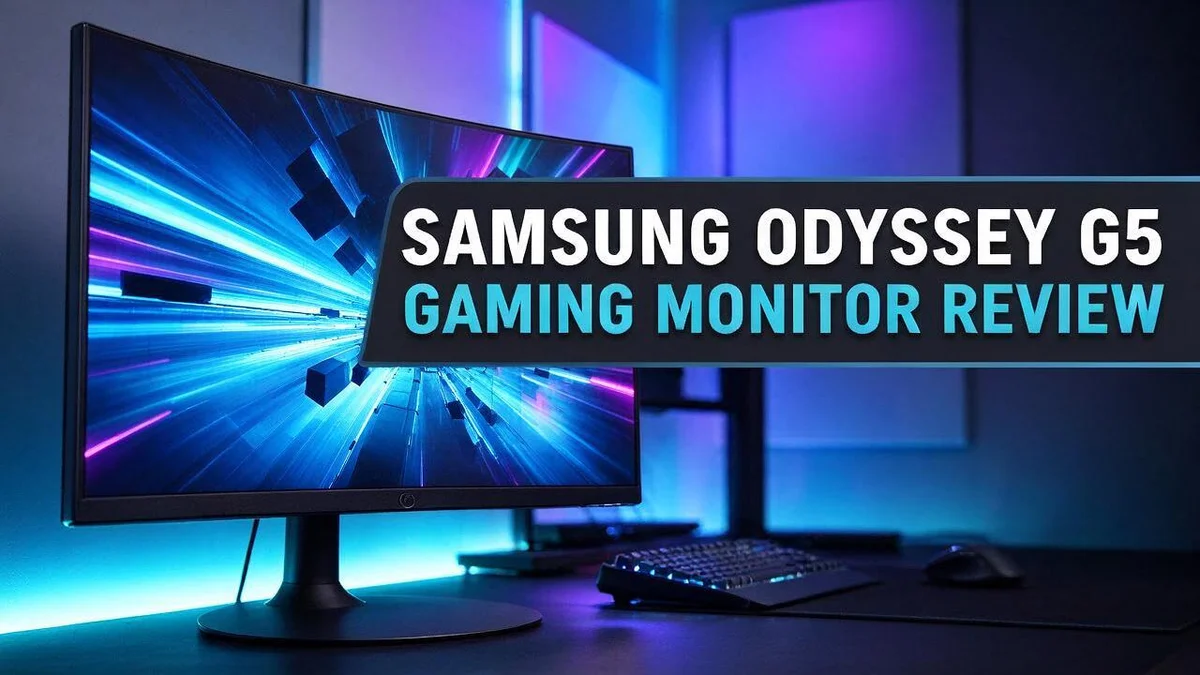
Are you looking for a gaming screen that pulls you into the action? The Samsung Odyssey G5 could be the monitor you need. It wraps around your view and makes every game feel bigger.
This curved display uses a 1000R curve, so the edges sit close to your eyes. The 27 inch model offers QHD resolution at 2560 by 1440 pixels. Its 144 Hz refresh rate keeps motion smooth during fast scenes.
Colors look vibrant, and the contrast helps dark scenes show more detail. You also get support for G-Sync and FreeSync, which helps reduce screen tearing.
Out of the box, brightness can look a bit low. Simple tuning of brightness and contrast often fixes this. In this guide, we walk through the key features, the strengths, and the weak spots so you can decide if this monitor fits your setup.
In a Nutshell
- Two screen sizes to pick from: You can choose a 27 inch or 32 inch model. Both show sharp QHD detail at 2560 by 1440 resolution, so text and game worlds look crisp.
- Fast refresh rates: The 27 inch model runs at 144 Hz. The 32 inch model reaches 165 Hz, so quick movements look smooth and fluid during intense matches.
- Adaptive sync support: Both models work with VRR technology. It keeps the image steady when your frame rate shifts, and it supports both AMD and Nvidia graphics cards.
- Motion blur reduction: The 32 inch version includes MBR. This feature cuts blur during fast scenes, which helps in shooters and racing games.
- Modest peak brightness: Maximum brightness stays limited. Bright rooms may wash out the picture, so place your desk away from direct sunlight and windows.
- Build quality concerns: Some reviewers criticize the overall build. A cable management solution comes in the box, so your desk stays tidy.
Display Quality and Color Performance

- Samsung’s 32” Odyssey G5 QHD Gaming Monitor delivers brilliant visuals for exhilarating gameplay that’s...
- QHD resolution (2560 x 1440) boasts incredibly detailed, pin-sharp images.
- With a wide 178° viewing angle, the IPS panel consistently delivers crisp, clear hues from various...

Last update on 2026-11-07 / Affiliate links / Images from Amazon Product Advertising API
Good color performance starts with sharp detail. The 27 inch model offers a QHD resolution of 2560 x 1440 pixels. Game textures and small text look crisp at this size.
The screen uses a VA panel, which is common in gaming displays. Viewing angles are a different story. VA panels can show color shifts when you sit off center.
Sitting directly in front of the screen gives the best results. Friends seated at the side may notice slightly washed out tones. Seat position matters more than many people expect.
Picture settings make a big difference. Most users will find picture modes in the settings menu. Each mode shifts the overall color feel, so testing a few helps.
Sharpness and color accuracy matter for creative work too. Photo editing needs more precise tones than casual gaming. This monitor suits gamers first, not color professionals.
Compatibility with both G-Sync and FreeSync gives you flexibility. You can pair the screen with Nvidia or AMD graphics cards. Colors stay steady during fast scenes when the display syncs with your card.
Tearing becomes less visible, so the image feels cleaner. This helps fast action look smooth and clear.
Dark rooms bring out the panel’s strengths. Lower room light reduces reflections on the screen.
Bright rooms can wash out darker tones. Position the monitor away from windows to reduce glare. A simple desk move can improve how colors appear.
Text clarity also affects how colors feel. Crisp edges make icons and menus easier to read during play.
Color consistency matters most in long sessions. Your eyes adjust over time, so a stable picture helps reduce fatigue. Take short breaks every hour to rest your eyes.
Good light, correct seating, and smart settings work together. Each step adds a little more clarity to the final picture.
Overall, color quality suits most gamers. Careful setup brings out the best results. Spend a few minutes in the menu before your first match.
Curved Design and Build Quality
Design plays a big role in how a monitor fits your space. The Samsung Odyssey G5 has a simple dark frame that suits most gaming desks. Many players notice the design first, before they check any specs.
Its curved body also changes how the screen sits on your desk. Measure your desk before you set it up. A curved panel needs more depth than a flat screen.
Check the width, too. The stand should fit without crowding your keyboard or speakers.
Cable management comes built in. The included solution helps you route power and video cords neatly behind the stand. This small feature keeps your desk looking clean, especially if you rearrange your setup often.
Clean cables also reduce the chance of a cord pulling the monitor off balance.
Build quality deserves a careful look when your box arrives. Lift the monitor by its base and check the frame for loose parts or uneven gaps. Test the stand movement before you connect everything, so you can spot problems early.
Mounting plans need extra thought. If you want a monitor arm, read the manual first. Mounting details can vary by model, so confirm the setup before you buy extra hardware.
Stable placement helps during fast games. Put the screen on a firm surface away from heavy footsteps or vibrations. A steady base keeps the image calmer when you move your mouse quickly.
Think about your room layout too. Place the monitor away from direct window glare, so the curved surface stays easy to view. Angle the screen slightly to face your seat for a comfortable view.
Quick checklist: Measure your desk, inspect the frame, test the stand, and read the mounting notes. A few minutes of prep saves time later. Taking these steps makes your first day with the monitor smoother.
Gaming Performance and Refresh Rate
Refresh rate shapes how smooth your games feel. Every second, the screen redraws the image many times. More updates mean motion looks fluid and easy to follow.
Your graphics card plays a big part too. A monitor can only show what your system delivers.
If your PC produces 90 frames per second, a 144 Hz panel rarely gets fully used. Matching frame output to the refresh rate gives the best results.
Fast shooters and racing games benefit most. Quick turns and sudden movement stay clear on screen. Slower adventure or strategy titles look nice too, but the gain feels smaller.
The 32 inch model offers a 165 Hz top speed. That extra headroom helps when your PC pushes high frame rates. Still, you need a strong system to reach those numbers in demanding games.
Consider your typical games first. Think about what you play most often. If you mostly play competitive titles, a faster refresh rate feels worth the upgrade. If you prefer cinematic single player games, the 144 Hz model already feels smooth.
Frame rate limits help too. Many games let you cap frames to keep performance steady. A stable frame rate often feels better than wild swings between high and low numbers.
Test your settings after setup. Open the display menu and confirm the refresh rate is set to the maximum.
Windows sometimes defaults to 60 Hz, so this step matters. Many players skip it and wonder why motion looks average.
Cable choice also affects speed. Use the cable that supports the full refresh rate. An older cable can limit the output to a lower number. Check your port and cable type before you start gaming.
Keep your expectations realistic. A higher number does not fix slow hardware. Pair the monitor with a capable graphics card for the best experience. Your games will look smoother when both parts work together.
Enjoy the difference as you play. Smooth motion can make long sessions feel more comfortable. Give your eyes time to adjust to the new speed.
Top 3 Alternatives
LG UltraGear 27GP850

- Vivid Colors and Sharp Details - Nano IPS technology supports the express high-fidelity color for reproducing...
- Gaming Innovation Beyond Boundaries - Complete your battle station with a premium LG UltraGear Gaming Monitor...
- A Total Game Changer - LG UltraGear Gaming Monitors are created from the ground up to give gamers the edge...
Last update on 2026-09-20 / Affiliate links / Images from Amazon Product Advertising API
The LG UltraGear 27GP850 is a strong choice for gamers who want speed. It uses a fast Nano IPS panel with a high refresh rate. Colors look bright and clear, so games feel vivid and lively.
Many players like its quick response time. Fast motion stays smooth during action scenes. The stand adjusts in height, tilt, and swivel. Gamers who play for long hours will appreciate that comfort.
ASUS TUF Gaming VG27AQ

- High-Resolution WQHD Display: 27-inch IPS panel with 2560x1440 resolution, 165Hz overclocked refresh rate, and...
- Advanced Motion Clarity Technology: Extreme Low Motion Blur Sync (ELMB Sync) technology reduces screen tearing...
- Ergonomic Design with Eye Care: Features ASUS Eye Care Technology to minimize eye fatigue during extended use...
Last update on 2026-11-07 / Affiliate links / Images from Amazon Product Advertising API
The ASUS TUF Gaming VG27AQ focuses on durability and value. It offers a smooth high refresh rate display for fast shooters. Its features help reduce screen tearing during play.
Gamers often praise its sturdy build quality. The frame feels solid on the desk. It suits players who want solid performance without extra fuss.
Acer Nitro XV272U

- 27" WQHD (2560 x 1440) Widescreen IPS PC Gaming Monitor
- AMD FreeSync Premium Technology
- Refresh Rate: 240Hz (Using Display Port) and 144Hz (Using HDMI Port) | Response Time: 1ms (G to G) - Up to...
Last update on 2026-11-07 / Affiliate links / Images from Amazon Product Advertising API
The Acer Nitro XV272U brings a sharp picture and fast performance. It has a quick refresh rate that keeps motion clean. Games look crisp, even during fast camera turns.
Many gamers enjoy its clear color output. The monitor also includes a flexible stand. It works well for both competitive matches and relaxed games.
Setup, Brightness Tuning and Ease of Use
Setting up your Samsung Odyssey G5 takes only a few minutes. Start by attaching the stand to the base. Then connect the power cable and your computer, and check that the input switches to the correct port.
Brightness is the first thing to adjust. Many people find the screen looks dull straight out of the box. Open the settings menu with the joystick on the back. Then raise or lower the brightness until dark areas show detail without looking gray.
Contrast needs a similar look. A VA panel can show deep blacks, but the default setting may crush shadows. Raise contrast slightly and watch the edges of dark scenes. If enemies blend into the darkness, you may have gone too far.
Peak brightness has limits. The panel is rated near 300 cd/m² typical, so it may look modest in very bright rooms. Work with your lighting instead of fighting it. Close the blinds at midday and keep windows off to the side.
Ease of use is a strong point for most owners. Menu labels are clear, and the joystick makes moving between options simple. Most people finish the basic setup in one evening.
Write down your favorite brightness and contrast numbers. That way, you can restore them quickly after a firmware update or a settings reset.
Use real content for testing. Load a dark movie scene, a bright web page, and a fast game. Change settings in small steps. Small moves add up and make a clear difference.
Your connection choice also affects the first start. Pick the port your graphics card supports best, and use a cable that matches it. A good cable and the right port help the first boot go smoothly.
Connectivity and Cable Management
Good connections start at the back of the monitor. Look over the ports before you place the screen on your desk.
Pick the right cable for your goals. A DisplayPort cable usually suits high refresh rates best.
Match the cable to the port on your graphics card. Check both ends before you plug anything in.
Cheap or damaged cables can cause flickering or dropped signals. Replace worn cables early to avoid frustrating glitches.
Leave some slack. Extra length lets you slide the monitor forward or back without strain on the plugs.
Route the cables down the back of the desk. Keep them away from chair wheels and busy foot traffic.
Use a power strip mounted under the desk. It keeps the outlet within easy reach and clears loose plugs off the floor.
Label each cable. Small tags make it easy to swap a console or laptop later.
Avoid sharp bends in every wire. Tight curves can damage the inner wires over time.
Keep cables clear of your PC fan vents. Good airflow keeps your system cool during long gaming sessions.
Use a separate USB hub on your desk. A hub gives you spare ports for a keyboard, headset, or webcam.
Keep power cords apart from data cables. Separate bundles also make cords easier to trace.
Use soft velcro ties instead of hard plastic. Soft ties hold cords together without pinching them.
If you use adaptive sync, confirm that your connection supports it. Check the display menu after each reconnect.
Test the connection with a fast game. Watch for flicker, sound drops, or a black screen.
Mark the cable routes for future moves. A clear plan makes tracing cables much easier later.
Dust and loose ties build up over time. A quick check every few months keeps your setup tidy and safe.
Keep a spare cable in a drawer. Having one ready makes repairs quick.
Pros and Cons
Pros
– The curved screen wraps around your view for deep immersion.
– Colors look vivid and the dynamic range feels rich.
– It supports both G-Sync and FreeSync setups.
– Two screen sizes help you match your desk space.
– Movies and games both look engaging on this panel.
Cons
– Some owners criticize the build quality.
– Specs vary by model, so check your exact version before you buy.
– The curve may feel odd if you prefer flat screens.
Who Should Buy It
Close seated gamers will likely get the most from this screen. A curve helps when your eyes sit about an arm’s length from the panel. Racing and open world titles feel wide and absorbing.
Fans of wide content should take a close look. Films shot in widescreen fit the 16:9 shape well. Sports broadcasts and documentaries can also feel engaging.
Shared households can also benefit. One screen can serve a student, a parent, or a roommate. The clean look suits casual browsing and streaming too.
Multitaskers with deep desks can make good use of the extra width. Chat windows, notes, and a web page can sit side by side. Many people keep a spreadsheet open next to a game.
Remote workers who spend long days on one screen may appreciate the layout. Wide windows reduce how often you swap tabs. Breaks still matter, so set a timer to rest your eyes.
Parents who want a fun gaming setup for kids can consider it too. Lively visuals keep younger players interested. Keep the screen at a comfortable height and watch play time.
Newcomers to curved screens should spend a few days testing the look. The curve can feel strange for the first few sessions. Then it often starts to feel natural. If possible, see one in person before you commit.
Color editors and photo designers should choose a different model. This panel leans toward entertainment, not strict color accuracy. Professionals usually need a monitor built for precise, calibrated work.
Shoppers with small desks should measure first. The curve and stand need room. Measure the depth of your desk and the width of the base before the box arrives.
Think about your main use before you commit. Gamers and movie fans will likely enjoy the experience most. Editors and bright room users may want to look elsewhere. Choose the option that fits your daily habits best.
Final Verdict
The Samsung Odyssey G5 earns a spot on many gaming shortlists. It pairs fast refresh rates with sync support.
Still, it asks for some patience before it shines. Out of the box, the picture can look dim.
Plan to spend time in the settings menu. Adjust brightness and contrast until dark scenes show clear detail.
Peak brightness stays modest, so bright rooms can wash out the image. Place the screen away from direct sunlight.
Think about the room layout too. A window behind the screen can cause glare, so plan your setup before you mount it.
Pick the size that fits your room and your habits.
The 27 inch model runs at 144 Hz. The 32 inch version climbs to 165 Hz and adds VRR support.
Higher refresh rates make fast action look smoother. That matters most in shooters and racing games.
Check that your graphics card supports the sync type you want before you buy. This keeps tearing low during long sessions.
A good tuning session takes less than an hour. Test a dark movie scene and a bright menu screen. Adjust until both look natural.
Build quality draws criticism from some owners. Handle the stand gently during setup.
Inspect the box for damage before you sign for delivery. Keep the packaging until you test the screen.
Users who need very bright screens for daytime office work may want a brighter panel.
Measure your desk before you order so the stand fits comfortably.
In short, this monitor suits gamers who want speed and immersion. Tune it well, handle it with care, and it can deliver a great experience.
Frequently Asked Questions
What does MBR do on the 32 inch model?
MBR stands for motion blur reduction. It helps fast scenes stay clear. Quick camera pans and racing action can look smeary without it. The 32 inch variants list this feature, so confirm your exact model before you buy.
How fast is the 32 inch version?
The 32 inch model runs at 165 Hz, which is a little faster than the 144 Hz option on the 27 inch model. It also supports variable refresh rate, or VRR. VRR keeps the picture smoother when your frame rate rises and falls during busy moments.
Does this monitor help with cable clutter?
Yes, it comes with a cable management solution. You can route cords neatly behind the stand. A tidy desk makes setup quicker and keeps your space looking calm.
Who should look at other screens first?
Buyers who need a very bright display for a sunny room may want a different option. Peak brightness stays modest, so strong daylight can reduce contrast. People who want a flat panel for detailed work may also prefer a different style.

Tian is a passionate technology enthusiast and reviewer who explores the latest in AI tools, gadgets, and digital innovations to help readers make informed tech decisions.