
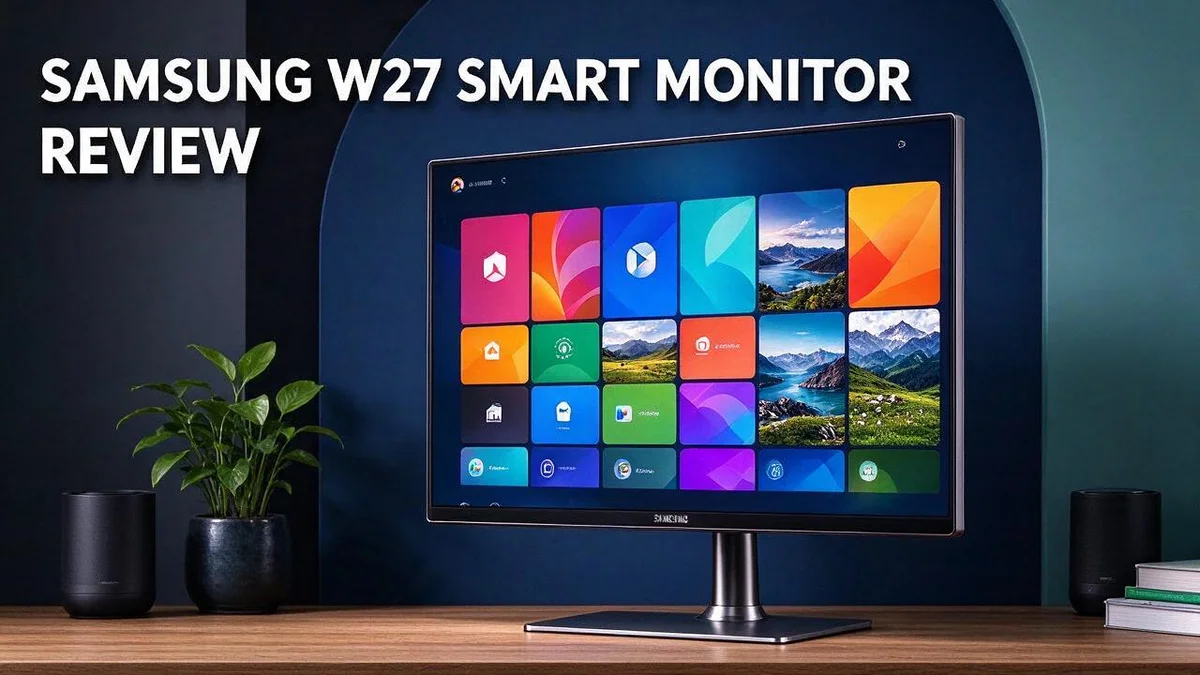
Samsung W27 Smart Monitor Review: Display, Features, Pros and Cons
Your desk setup says a lot about you. A good screen changes how you work and relax.
That is why so many people look for a smarter display. The Samsung W27 Smart Monitor aims to bring that convenience home.
It pairs a clean screen with useful built in smart features. Smart monitors can stream videos and apps without a separate device. That makes setup quick and simple.
Many shoppers feel unsure before they buy. They want clear answers about design, daily use, and everyday comfort.
This guide explains every detail in plain language, so you can decide with confidence. Let’s take a closer look.
In a Nutshell
-
Who it suits: This monitor fits people who want a clean screen for work, streaming, and everyday browsing at home.
-
Smart features matter most: Test the built in apps during your daily routine before you commit, because they shape how you use the screen every day.
-
Size gives room to work: A 27 inch display offers enough space to keep two windows open side by side without feeling cramped.
-
Look at rival options: The Samsung Essential S3 is a popular choice in the USA, with a 27 inch curved screen and a 1800R curve.
-
Compare contrast and speed: The Sansui ES-27F2C lists stronger contrast and faster response time than the Smart Monitor M5 24 inch, so check the numbers side by side.
-
Plan your laptop setup: Many people pair a 27 inch curved screen with a MacBook, so confirm that your laptop supports the connection you need before you decide.
Display Quality

- Discover all your favorite streaming apps lined up in one place. Browse and watch content directly from your...
- Tune into various free channels, including Samsung TV Plus channels, to watch news, sports, movies, kids...
- Access the ultimate gaming realm. In the Samsung Gaming Hub, you can play the biggest games from top streaming...

Last update on 2026-11-07 / Affiliate links / Images from Amazon Product Advertising API
Display quality decides how the screen feels after hours of use. A sharp picture makes text easy to read. Good colors make photos and videos look natural. Here is what to check on the Samsung W27.
Start with the resolution. Sharp text depends on pixel density. Higher pixel counts show clean edges on documents and web pages. Lower counts can look soft, especially when you sit close to the screen.
Next, look at the panel type. Panel type shapes viewing angles and color. Some panels keep colors steady when you lean to the side. Others shift tones quickly. Anyone watching with you will notice the difference.
Brightness matters too. A bright screen works well near windows. A dimmer screen suits a dark room. Check whether the W27 offers adjustable brightness so you can match your space.
Glare is another factor. A matte coating reduces reflections. Shiny surfaces can show lamps and windows in the picture. Place the monitor away from direct bright light for a clearer view.
Color accuracy deserves attention. Wide color coverage helps with photo editing and design work. Casual users may not need perfect color. Still, balanced colors make every app look pleasant.
Flicker and eye comfort also count. Many modern monitors include flicker reduction and low blue light modes. These settings can help during long workdays. Test them yourself and see what feels comfortable.
Run a few quick tests before you commit. Open a text page, a video, and a dark movie scene. Notice whether shadows look flat or detailed. Scroll quickly and watch for blurry edges. These simple checks often reveal more than numbers alone.
The available research does not list the exact display numbers for the W27. Read the official spec sheet before you buy. Look for panel type, resolution, brightness, and response time. Then compare those details with the tasks you do every day.
Design and Build
The design sets the tone for your desk. A monitor sits in front of you for hours, so its look matters. Think about how the frame, stand, and finish blend with your room. Good choices make the space feel calm and neat.
Check the stand first. A solid stand keeps the screen steady when you type or tap. A wobbly base can shake the picture each time you move.
Height adjustment is another key point. Your neck and eyes feel better when the top edge sits near eye level. Tilt and swivel help too, so you can angle the panel away from lamps or windows.
Look at the bezels next. Thin edges give a modern feel and let two screens sit side by side with less gap. Thick borders can make the picture feel smaller.
Many people enjoy this clean edge during long video calls. It also keeps your focus on the content rather than the frame.
Plan for cable management. A tidy back panel hides cords and keeps the desk clear. Look for cable channels or clips built into the stand.
Mounting options add flexibility. Some setups need a wall arm or desk clamp. Check whether the back accepts a standard VESA pattern so you can swap in another mount later.
Weight and footprint matter too. A lighter panel is easier to move when you clean or rearrange your desk. Measure your desk depth before you buy so the base fits without crowding your keyboard.
Finish and material shape the feel. A matte finish resists fingerprints and feels soft to the touch. Glossy plastic can look sleek but shows smudges quickly.
Hold the monitor in a store if you can. Press gently on the stand and test the buttons to judge the build for yourself. The research does not list the exact design details for the W27, so confirm them on the product page.
Good design pays off over time. A sturdy, tidy monitor stays pleasant to use for years. Choose the look that suits your space and daily habits.
Smart Features and Software
Smart features can change how you use a monitor every day. Many people think of a screen as just a display, but a smart model can work on its own too.
Think about your daily habits first. If you stream shows at night, the built in apps matter more than you expect. If you mostly write documents, you may rarely open them.
Check the app library carefully. A useful app list saves you from hunting for tools. Make sure the apps you use most are available on the screen.
Look at wireless connection options. Wireless links cut down on cables and speed up setup. You can pair a laptop or phone when you need to share content.
Consider how the menus feel. Clear menus save time every day. Hard to find settings can frustrate you, so change brightness and input source during your first hour.
Think about updates and privacy. Software updates fix bugs and can add new features. Read the privacy settings before you sign in, and turn off anything you do not need.
Pay attention to the remote. A simple remote or voice option helps when you sit back from the desk. If the controls feel awkward, you may use the screen less often.
Plan for shared use. Family members or guests may want to cast photos or videos. Check whether separate profiles are available so everyone keeps their own settings.
Track your first week. Note which features you use and which ones you ignore. This quick log shows whether the software fits your routine or needs a different plan.
The research does not list exact app names or software versions for the W27. Confirm those details on the official product page before you decide.
Top 3 Alternatives
Samsung M7 Smart Monitor

- INSTANT ACCESS TO YOUR FAVORITE STREAMING CONTENT: Stream content directly from your monitor, or tune into...
- OPTIMALLY TAILORED VISUALS WITH AI: Experience optimal picture quality adjusted to your needs.² AI Picture...
- SIMPLE CONTROL FOR YOUR SMART HOME: See your smart home devices in a 3D Map View and manage them with ease...
Last update on 2026-11-07 / Affiliate links / Images from Amazon Product Advertising API
Want a screen that works without a computer? The Samsung M7 Smart Monitor gives you built-in streaming apps and a sharp 4K display. It suits movie nights, web browsing, and light office work.
Its clean design fits well in small rooms and bedrooms. You can connect a keyboard and mouse and use it like a simple desktop tablet. Setup takes only a few minutes.
Samsung M8 Smart Monitor
No products found.
Want a little more flexibility? The Samsung M8 Smart Monitor combines a stylish body with smart features. It works well for video calls, shows, and everyday tasks.
Many users like how the screen switches between work and play with ease. It is a good pick for people who want one multipurpose display at home or in a home office.
LG 27MP400

- Full HD Monitor - Enjoy gaming, movies, shows and videos in Full High Definition. LG's FHD Monitors present...
- 75Hz Refresh Rate - Stream like you’re the only one watching with an ultra-fast 75Hz refresh rate.
- Wall Mountable - Running low on desk space? Mount the 27” FHD IPS Monitor for easy viewing.
Last update on 2026-11-07 / Affiliate links / Images from Amazon Product Advertising API
Need a practical option for focused work? The LG 27MP400 offers a 27-inch Full HD IPS panel with wide viewing angles. Its 75Hz refresh rate keeps motion smooth during games, videos, and scrolling.
Thin bezels create a clean, modern setup on any desk. Gamers and office workers can both enjoy AMD FreeSync support for smoother visuals with less screen tearing.
Ergonomics and Stand Adjustment
Your body needs a comfortable setup. Good ergonomics help you sit relaxed during long work sessions. Small changes to your desk can prevent sore necks and tired eyes.
Start by placing the top edge of the screen at or slightly below eye level. This position keeps your head upright. You avoid tilting your chin up or down for hours.
Next, check the tilt range. A gentle backward tilt helps you find the best viewing angle. Tilt also lets you adjust the screen without moving the whole desk setup.
Swivel adds another useful option. Turning the screen left or right helps when you share the view with a colleague. Look for pivot support if you read long documents or code.
Distance matters too. Sit about an arm’s length away from the screen. This gap keeps text easy to read without leaning forward.
Your keyboard and mouse need the same care. Place them close to the front edge of the desk. Keep your elbows near your sides and your wrists straight while you type.
Look at your chair and feet as well. Feet should rest flat on the floor or on a footrest. Knees bend at a comfortable angle, and your back feels supported.
Lighting also affects your posture. Dim room light makes you lean closer to read, so keep the room evenly lit. A clear desk gives you room to move. Keep frequently used items within easy reach so you do not twist or stretch.
Take short breaks every hour. Stand up, stretch your shoulders, and look at something far away. This habit rests your eyes and eases tension in your neck.
Test the full setup during one complete work session. Notice any neck pain, shoulder tension, or tired eyes. Adjust the screen again if something feels off. Small adjustments add up over time, so write down what feels good and repeat it on another day.
Connectivity and Ports
Ports decide how easily you connect your computer, game console, and other devices. Start by counting the ports you need today. Then plan for one or two extra ports later.
Video inputs matter most. Your computer must send a clear picture to the screen. HDMI works well for most laptops, consoles, and streaming boxes. A DisplayPort input often suits high refresh rate gaming on a PC. Check the version so it fits your graphics card or console.
USB C can do more than one job. A single USB C cable may carry video, data, and power at the same time. This setup keeps your desk neat because one cord handles the display and charging. Check how many watts the port supplies, since a low number may charge a larger laptop slowly.
Built in USB ports save reaching. Extra USB ports let you plug in a keyboard, mouse, or flash drive without reaching under the desk. Place these ports where your hand can reach them easily. Some people prefer a side port for quick file transfers.
Audio jacks are often overlooked. A headphone jack lets you hear sound without a separate speaker cable. Some monitors also include an audio out port for external speakers. Test the volume after you connect your device.
Count the devices you switch between. Many people use a laptop for work and a console for play. Two video inputs prevent you from unplugging cables each time you switch. Think about your daily routine before you choose the number of inputs.
Cable quality affects performance. A weak cable may limit resolution or refresh rate even when the ports are correct. Use certified cables that match the port version. Keep spare cables in a labeled box so you can swap them fast.
Read the official port list first. Product pages and manuals show the exact ports on each model. Compare the labels carefully, since similar names may differ in speed or features. Use this list to confirm your setup works before you order.
Pros and Cons
Pros
– Built in smart features let you stream shows without a separate computer.
– The 27 inch screen gives you room for work and entertainment.
– One screen can handle both daily tasks and relaxed viewing.
– A smart monitor can help you keep a tidy desk with fewer gadgets.
Cons
– Full specs for the W27 are hard to confirm, so check the spec sheet yourself.
– Few hands on reviews exist, which makes real world performance harder to judge.
– Buyers who want a curved screen may need to look at a different model.
Who Should Buy It
Remote workers form the core audience. They sit at a desk for hours each day. They need one screen for email, documents, and video calls.
Many people in this group work from a home office or a small apartment. A clean display keeps the workday moving smoothly.
Casual viewers also find it useful. If you watch shows during lunch or after work, the W27 can serve as a relaxed viewing screen. You do not need a separate computer for that job.
Students can use it for study sessions. Split screen views help you take notes beside a web page or lecture slides. Keep the setup simple so your focus stays on learning.
Gamers should look at other options. Fast games need quick response times and strong contrast. In a comparison with the Samsung Smart Monitor M5, the Sansui 27 inch model lists 5 ms and 4000:1 contrast. The M5 lists 14 ms and 1000:1 in that same comparison.
Mac owners may want a wider view. Some people pair a 27 inch Samsung curved monitor with a MacBook. A 34 inch curved model can add horizontal room for side by side windows. No single model stands out here, so compare a few options before you decide.
Fans of a proven curve can look at another Samsung. The Essential S3 27 inch model uses a 1800R curve and remains popular in the USA. It suits daily office work and general browsing.
In short, the W27 suits people who want one tidy screen. It works well for work, streaming, and light study. Gamers and curve lovers should compare alternatives first.
Final Verdict
In short, the Samsung W27 suits people who want one screen for work and relaxed viewing. It brings a 27 inch display and smart tools into one simple setup. Most buyers will find it useful for everyday tasks.
Your final choice should start with your room and your desk. Measure the space first, and sit at a normal viewing distance before you decide.
Lighting matters as much as size. Glare from windows can wash out a picture, so plan where the screen sits before the box arrives.
Your priorities also shape the answer. The Sansui 27 inch model lists 4000:1 contrast and a 5 ms response time. The Samsung M5 24 inch lists 1000:1 contrast and 14 ms response, so compare these numbers side by side.
A good test starts with your everyday tasks. Open your usual apps, play a short video, and type a few emails. Notice whether text looks sharp and colors feel natural.
Think about your sitting posture too. Set the screen height so the top edge sits near eye level. Your neck will thank you after long workdays.
Hands on reviews are scarce, so user photos and comments can reveal how the screen looks in real rooms. Look for posts from people with a similar desk and lighting.
Check the seller return policy before you buy. A short test period lets you judge the screen in your own space.
Be honest about your habits, too. A screen only helps if you use it. Confirm the specs, test the layout, and choose the screen that fits your daily routine. If the W27 matches those needs, it earns a place on your shortlist.
Frequently Asked Questions
Can the Samsung W27 work as a TV in a small room?
It can handle short shows and streaming. Check the built in apps and speaker options on the spec sheet first. Good sound often matters more than screen size in a small space.
Is the Samsung W27 good for video calls?
Yes, it can work well for calls. Place your webcam at eye level so you look natural on screen. Test your microphone before a big meeting.
How do I connect my devices to the W27?
Start with the port list. Make sure the ports match your laptop, console, or streaming stick. Use a cable tray or clip to keep wires off your desk.
Will a 27 inch screen fit on my desk?
Measure your desk depth and width first. Leave room for the stand and some space behind the screen. A deep desk gives you better viewing distance.
Should I wait for a newer model?
Check the release date and recent user comments. Newer models may add features, but current models can still meet your daily needs. Compare the features you actually use before you decide.

Tian is a passionate technology enthusiast and reviewer who explores the latest in AI tools, gadgets, and digital innovations to help readers make informed tech decisions.