Samsung Odyssey OLED G6 Review: 360Hz QD-OLED Gaming Monitor Tested
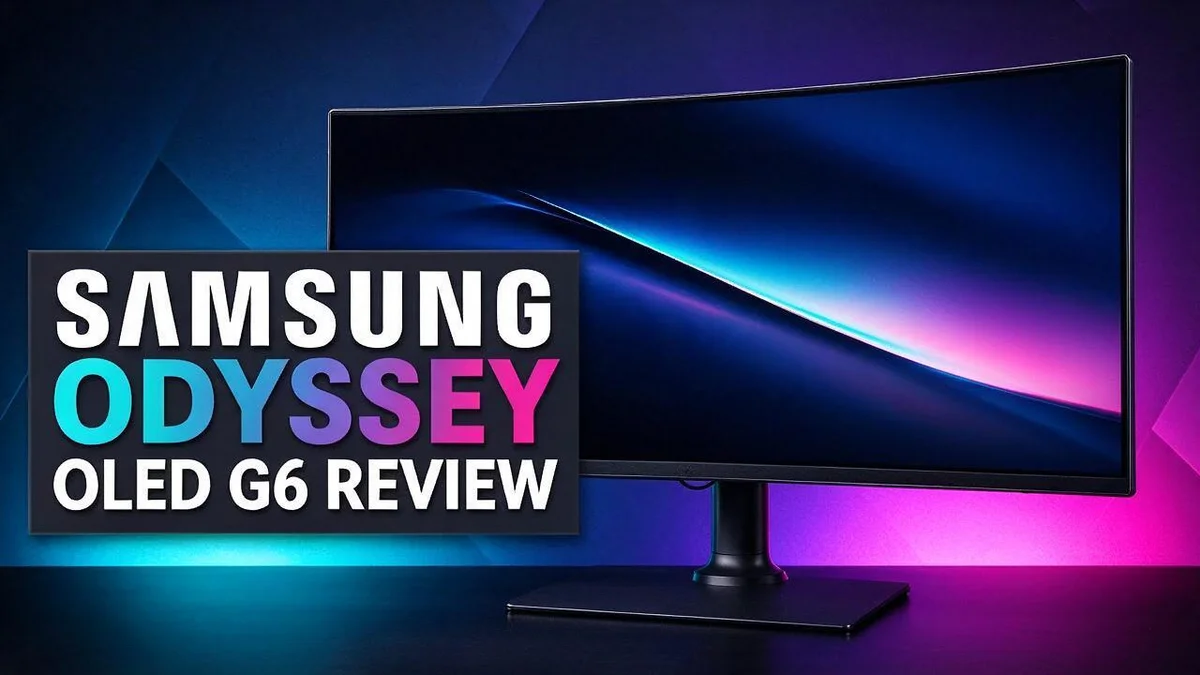
Gamers who want smooth, sharp motion have a new option to consider. The Samsung Odyssey OLED G6 brings a 27 inch QD OLED panel to the table. It packs fast response and vivid colors into one sleek screen.
Fast action looks clean on this display. The panel offers a 360Hz refresh rate on the G60SD model. Motion stays fluid, even in the busiest scenes.
Colors pop without looking fake. Reviewers praise the excellent uniformity across the panel. The semi matte coating also cuts glare nicely.
Still, no screen is perfect. Some users notice pixel shift at first. A firmware update helps reduce flicker, and burn in remains a common concern with OLED panels.
In this guide, you will see how the G6 performs. We cover its strengths, its weak spots, and how it compares to top rivals. Let’s dive in.
In a Nutshell
-
Two model options: The G60SD runs at 360Hz, while the G60SF pushes to a 500Hz variant. Both use a 27 inch QD OLED panel with QHD resolution, so you can pick the refresh rate that fits your play style.
-
Quick response time: The panel responds in under 1ms. This speed keeps busy scenes clear and reduces ghosting when targets move fast.
-
Semi matte coating: Reviewers rank this finish among the better options on OLED. It cuts down on glare from windows and room lights while keeping blacks deep.
-
Strong review marks: Reviewers gave the G6 a 10 for performance and a 9 for features. These scores show it handles demanding games with ease.
-
Known drawbacks: Pixel shift can feel strange at first, and a firmware update is needed to reduce flicker. Burn in remains a common concern for OLED owners.
-
Main rivals: The Asus ROG XG27AQDMG and the LG UltraGear 27GS95QX are the closest competitors. Both offer similar panel tech, so compare them side by side before you decide.
Display Technology and Image Quality

- Samsung’s 27” Odyssey OLED G6 Gaming Monitor is engineered for perfection with a QD-OLED Display featuring...
- OLED Safeguard technology supports performance by actively helping to prevent burn-in with a thermal...
- Glare Free Technology keeps screen clear of reflection from external light sources
Last update on 2026-11-07 / Affiliate links / Images from Amazon Product Advertising API
Image quality starts with how the panel creates light. The G6 uses QD OLED technology, which means each pixel lights itself. When a pixel turns off, it shows true black.
This gives the screen excellent contrast. Dark scenes in games look rich instead of washed out. Shadows keep their detail, so you can spot enemies hiding in corners.
Resolution plays a big role too. The 2560 by 1440 panel packs roughly 109 pixels into every inch at this 27 inch size. Text looks crisp, and game worlds feel sharp without needing extreme hardware.
Work tasks benefit too. Spreadsheets, code, and browser tabs look clean and easy to read. A wide desktop gives you room for multiple windows side by side.
Brightness matters for HDR content. The panel can get bright in small highlights like sparks, reflections, and sun glare. Large bright areas may look a little dimmer, which is common on OLED panels.
Uniformity is another strength. Colors stay consistent from the center to the edges. Viewing angles also hold up well, so friends sitting beside you see a similar picture.
Movies and shows also shine. Dark scenes keep their mood, and bright scenes show clear highlights. Streaming content looks cinematic when HDR is turned on in your system settings.
Calibration tools can fine tune the picture. Many users adjust gamma, black level, and sharpness in the monitor menu. Small changes can make dark details stand out in shadowy rooms.
Burn in is the main concern for image quality. Static items like taskbars, health bars, or game logos can leave faint marks over long periods.
Many owners reduce this risk with dark desktop themes, auto hide taskbars, and screen shift or pixel refresh options.
Good habits help a lot. Vary your content, lower brightness for static desktops, and let the screen run its automatic care cycles. Simple habits protect the panel and keep the picture bright. With these steps, the G6 can deliver stunning visuals for years.
Motion Performance and Refresh Rate
Refresh rate is only one part of smooth motion. The way a screen holds each frame also shapes what your eyes see during fast camera pans. This section looks at how the G6 handles motion from several angles.
Motion blur is the smear your eyes notice when objects move quickly. Many displays add this smear because pixels stay lit between frames. The G6 reduces that effect, so enemies and crosshairs stay easy to track.
Frame pacing matters just as much as the raw number. A steady stream of frames feels better than a higher number that jumps around. When your graphics card delivers frames at a steady pace, the screen shows each one at the right moment.
Input lag is the delay between your click and the action on screen. Lower delay helps during quick shots and tight dodges. A high refresh panel gives your inputs a faster visual response.
Your graphics card decides how well this panel performs. A strong graphics card helps the panel shine in demanding titles. If your frame rate drops below the refresh rate, you may see stutter. Matching settings to your hardware keeps play smooth.
Variable refresh rate keeps the picture in sync. It adjusts the screen speed to match the frames your PC sends. This removes tearing, which happens when the image splits during a fast turn.
Competitive players often choose a higher refresh model for ranked matches. Casual players may find the standard option more than enough. Both paths deliver a clear and fluid picture for most games.
Film and video playback also benefit. Scrolling credits and sports broadcasts look cleaner with steady motion. Movies with fast camera work also look more natural. Watching fast sports on this screen feels natural rather than choppy.
Think about your own play style before you decide. Choose the refresh level that fits your games and your graphics setup. Smooth motion starts with a good match between display and PC.
Design, Stand and Ergonomics
Good design matters more than many buyers expect. You look at your monitor for hours each day. A comfortable setup keeps you focused and relaxed.
The stand plays a big role in comfort. It holds the screen at the right height and angle. Poor positioning can cause neck strain after a long session.
Ergonomics starts with eye level. The top of the screen should sit at or just below your eye line. This helps your head stay upright while you work or play.
Most people look for three main adjustments. Height, tilt, and swivel each solve a different problem. Together, they let you shape the setup around your body.
Height adjustment matters most on shared desks. Different users need different positions. A smooth lift makes switching between them easy.
Tilt controls the viewing angle. A slight backward tilt can reduce glare from overhead lights. Too much tilt, however, can make the top of the screen harder to see.
Swivel helps when you share the display with friends or family. It also lets you turn the screen toward a second monitor without moving your chair.
A sturdy base keeps the screen steady. Stability often matters more than people think. Less wobble means less distraction when you type or click quickly.
Cable management is another quiet benefit. Neat cables keep the desk clean. Clear space makes the whole room feel calmer.
Mounting options deserve a look too. Some users prefer a wall arm or a desk arm for extra room. Check the rear panel for mounting support before you buy an arm.
Desk space also matters. A wide monitor can crowd a small desk. Measure your depth and width before you set everything up.
Finally, follow a quick setup routine. Adjust the height first, then the tilt, then the swivel. Small changes can bring big comfort gains over time. Sit in your normal posture and check the screen. Good ergonomics feels natural, not forced.
Top 3 Alternatives
Looking for a different OLED monitor? These three options offer vivid colors and smooth gaming performance.
ASUS ROG Swift OLED

- Premium 4K QD-OLED Display: 32-inch gaming monitor with 3840 x 2160 resolution, 240 Hz refresh rate and...
- BlackShield Film Technology: Increases panel hardness for 2.5X better scratch resistance and boosts perceived...
- Advanced OLED Care Pro: Features Neo Proximity Sensor that precisely detects when the user is away and...

Last update on 2026-11-07 / Affiliate links / Images from Amazon Product Advertising API
The ASUS ROG Swift OLED delivers deep blacks and bright, punchy colors. Its fast refresh rate keeps motion clear during quick action scenes. Gamers who want sharp visuals and fast response times will appreciate this display.
LG UltraGear OLED

- LG UltraGear OLED Goes Glossy - Experience ultra-smooth, tear-free gameplay with up to 240Hz refresh rate and...
- Next-Level OLED Brightness, for Next-Level Play - The brilliant OLED display brings every scene to life with...
- VESA DisplayHDR True Black 400 - An OLED display with VESA DisplayHDR True Black 400 and a 1.5M:1 contrast...
Last update on 2026-11-07 / Affiliate links / Images from Amazon Product Advertising API
The LG UltraGear OLED focuses on smooth gameplay and rich contrast. Its OLED panel shows every shadow and highlight with clarity. It also works well for movies, so you can enjoy it beyond gaming.
Alienware AW2725DF

- QD-OLED technology enables stunningly rich color and clarity, while QHD resolution (2560x1440) provides high...
- 360Hz refresh rate translates to superb motion clarity, empowering players to see and react to in-game...
- 0.03 ms gray-to-gray minimum response time** virtually eliminates blurring and ghosting and keeps latency to...
Last update on 2026-11-07 / Affiliate links / Images from Amazon Product Advertising API
The Alienware AW2725DF uses a QD-OLED panel for vivid, accurate colors. Its high refresh rate makes fast shooters feel responsive. Many players like its bold look and strong overall image quality.
Burn-In Risk and Panel Care
Burn in is a real concern on any OLED screen, and the G6 is no exception. The good news is that you can lower the risk with simple daily habits. Think of care as a routine, not a one time fix.
Start with your display settings. Turn on the built in pixel refresh tool when the screen asks for it. Also enable pixel shift, which moves the image by tiny amounts over time. Many users find this feature annoying at first, but it protects the panel from wear.
Next, set short timers for your desktop. Choose a sleep time of ten or fifteen minutes so the screen turns off when you step away. Lower brightness also helps. Bright static content ages pixels faster, so keep the level comfortable rather than maxed out.
Your desktop layout matters too. Use a dark theme and hide the taskbar when you can. Move chat windows and tool panels now and then. Changing where static icons sit gives each area a rest.
Gaming needs care as well. Long sessions with a fixed health bar, minimap, or score counter put steady stress on certain pixels. Mix in different games, change menus, and take breaks. A short pause every hour gives the panel time to recover.
Keep the firmware current too. Samsung updates can improve flicker control and refine care features, so check the update menu every few months. Installing the latest version keeps the screen running the way it was designed to run.
Cleaning deserves attention. The semi matte coating handles dust well, but harsh cloths can wear it down. Use a soft microfiber cloth and a light touch. Never spray liquid directly onto the panel, because moisture can seep into the edges.
Check the panel every few weeks. Display a plain gray screen in a dark room and look closely. Faint shapes mean it is time to adjust your habits.
Finally, protect the screen from heat and sun. Keep it away from direct sunlight and strong heat sources. A window shade helps during bright afternoons. Warm rooms can speed up wear, so good airflow matters.
Pros and Cons
Pros
- Quick response keeps fast action scenes clear.
- Bold, lively colors make games and videos pop.
- Expert reviewers gave strong marks for performance.
- Two refresh rate options suit different types of players.
- Fluid motion works well for both gaming and movies.
Cons
- Pixel shift can feel strange during the first few days.
- A firmware update is needed to reduce flicker.
- Long-term wear worries some owners.
- Rivals like the Asus ROG XG27AQDMG and LG UltraGear 27GS95QX-B make the choice tougher.
Who Should Buy It
Competitive players sit at the top of the list. If you climb ranks in fast shooters, every frame counts. The panel keeps moving targets clear, so you can track enemies with less effort.
Mixed use gamers also benefit. You might race on Monday and explore a story game on Friday. This screen handles both styles well, so you do not need two monitors.
Racing fans who chase lap times get a clear view of track edges. Quick turns and tight corners stay sharp on screen.
Movie fans make another strong match. Dark rooms show off the deep blacks that OLED panels do best. Night scenes look rich and full of detail.
Remote workers who game after hours can benefit too. The screen handles documents during the day. At night, it switches to fast play with ease.
Shoppers who want one screen for everything should think twice. Spreadsheets, long writing sessions, and bright office work need less flair. A screen built for speed serves gaming first.
Console players deserve a closer look at connections. Check which ports your setup needs before you commit. This step saves time and frustration later.
Anyone moving from a 60Hz screen will notice the jump right away. Older displays often feel slow when motion fills the screen. The change feels clear even to casual players.
Try before you buy whenever you can. A store demo or a friend’s setup shows the motion in person. Seeing it live helps you judge the speed for yourself.
Buyers who care most about speed and contrast will love this monitor. Everyone else should compare a few options first and match the screen to their daily routine.
Final Verdict
The Samsung Odyssey OLED G6 earns a strong final score. Its performance and features stand out in a crowded field.
The 27 inch QHD panel pairs fast motion with vivid colors. Sub 1ms response keeps action scenes clean.
Reviewers praised the semi matte coating for its clean finish. It stands out compared with other OLED screens for surface quality.
The refresh rate choice matters most. The G60SD suits most players at 360Hz. The G60SF offers 500Hz for those who want the highest speed.
Some issues remain. Pixel shift feels odd at first, and a firmware update helps reduce flicker. Burn in is still a long term concern.
Rivals like the Asus ROG XG27AQDMG and the LG UltraGear 27GS95QX are worth a look. The G6 holds its own against both.
Our final take is simple. Buy the G6 if you want top motion performance and rich picture quality. Skip it if you want a screen that never needs care.
The review scores back up that choice. Performance earned a perfect 10, and features scored a 9. Those marks show the panel is built for real use.
Daily comfort also counts. Many users adjust the settings once and then enjoy the picture for months. Good habits help the panel last.
Who should say yes? Players who upgrade from an older monitor will see the change at once. Those who value color depth will love the image.
The Samsung Odyssey OLED G6 shows that OLED can handle fast gaming with style. It remains one of the strongest picks in this class.
Final thoughts. The G6 is not a perfect screen, but it is a strong one. Its speed, color, and finish make it a standout choice for gamers who want the best OLED experience.
Your final choice depends on how you use the screen each day. Weigh the pros and cons before you decide.
Frequently Asked Questions
Can I use the Samsung Odyssey OLED G6 for office work?
Yes, you can. The semi matte finish cuts glare from windows and desk lamps. Documents and spreadsheets look clear on this 27 inch screen. It works well for a mixed day of work and play.
Which version should I pick, G60SD or G60SF?
Most people will do well with the G60SD at 360Hz. The G60SF offers a 500Hz option for players who want the highest possible speed. Your graphics card must push very high frame rates for that extra speed to show.
How can I lower the risk of burn in?
Use a dark desktop background and hide the taskbar when you can. Change your screen content often, and let the built in pixel care features run during breaks. Good habits go a long way on OLED panels.
How do I fix flicker after setup?
Visit the official Samsung support page and download the latest firmware for your model. Install the update, then restart the monitor. Test a few games or videos to confirm the flicker is gone.

Tian is a passionate technology enthusiast and reviewer who explores the latest in AI tools, gadgets, and digital innovations to help readers make informed tech decisions.